AWS Series — How to encrypt the data in EBS?
Elastic block store is a virtual hard disk attached to the EC2 instance. To know more about it. Go over this article.
AWS Series — What is Elastic Block Store?
When we are creating EC2 instance, we come across the check box inside the create Storage as “Enable EBS Encryption”.
What is EBS Encryption?
EBS encrypts your volume with a data key using the industry-standard AES-256 algorithm. Amazon EBS encryption uses AWS Key Management Service ( AWS KMS) customer master keys (CMK) when creating encrypted volumes and snapshots.
What happens when you encrypt an EBS volume?
- Data at rest is encrypted inside the volume.
- All data in flight moving between the instance and the volume is encrypted.
- All snapshots are encrypted
- All volumes created from the snapshot are encrypted
The EBS Encryption is —
- Handled Transparently — Encryption and decryption are handled transparently ( you don’t need to do anything)
- Latency — Encryption has minimal impact on latency
- Copying — Copying an unencrypted snapshot allows encryption
- Snapshots — Snapshots of encrypted volumes are encrypted
- Root Device Volumes — You can now encrypt root device volumes upon creation.
4 steps to encrypt an Unencrypted Volume —
- Create a snapshot of the unencrypted root device volume,
- Create a copy of the snapshot and select the encrypt option
- Create an AMI from the encrypted snapshot
- Use that AMI to launch new encrypted instances.
Let us see how we can do this.
Go to AWS management console > EC2 > Select the instance running > Storage
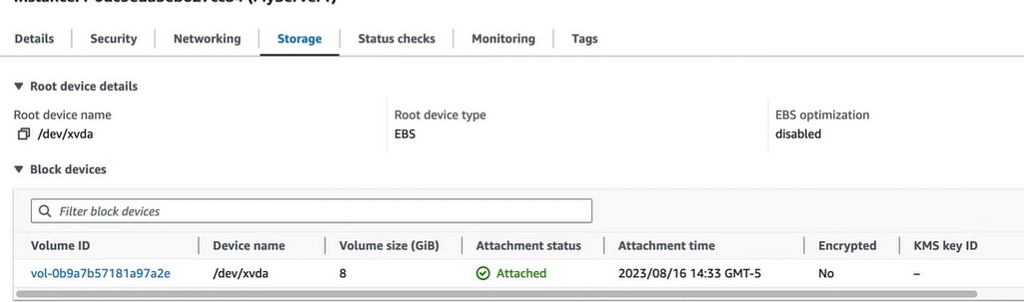
Click on the root device volume that is attached to EC2 by default
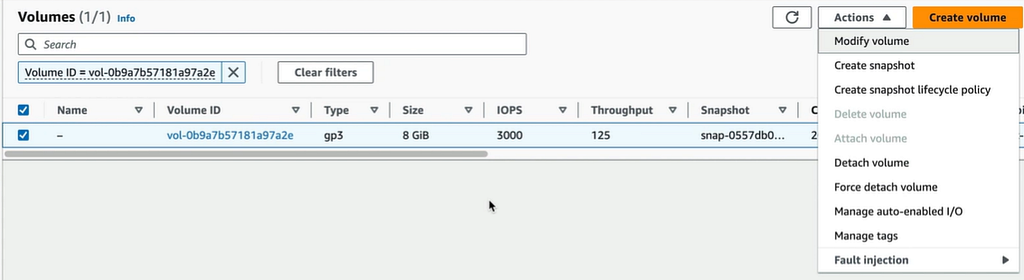
Select the volume and go to Actions > Create Snapshot

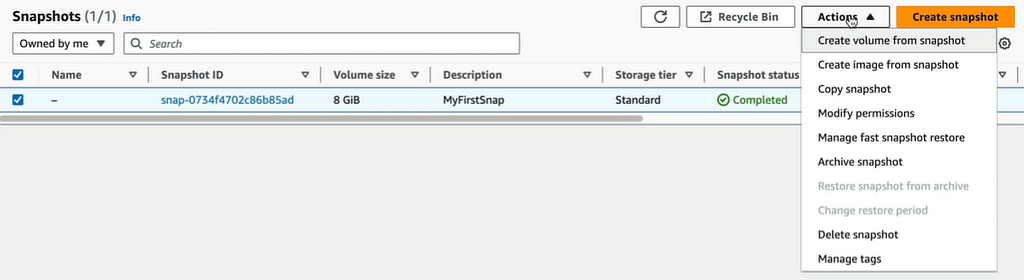
Select the snapshot and go to Actions > Copy Snapshot
In copy snapshot, select the destination region and select the encrypt this snapshot
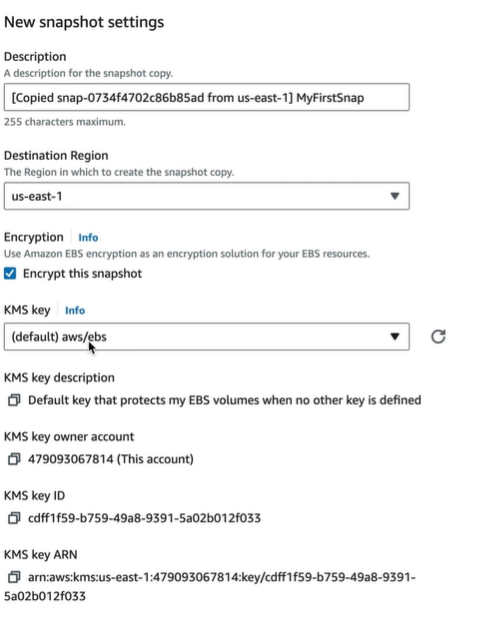
We can use default AWS KMS Key
This will copy into the that region with the encryption enabled. Now switch to that region, and find the snapshot just copied.
Now create an image from the snapshot by selcting the snapshot and Actions > Create Image from snapshot.
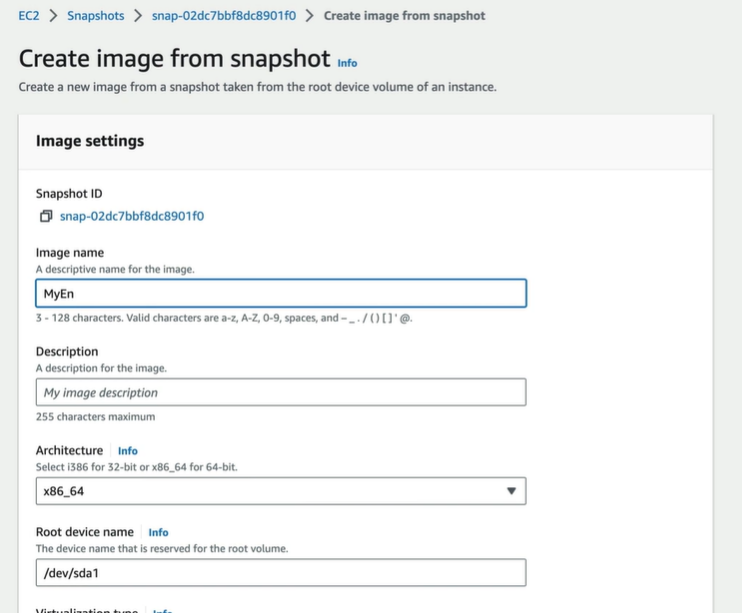
This will create an AMI which is the template and can be used to launch any number of instances from this AMI.

Points to Remember —
- Data at rest is encrypted inside the volume.
- All data in flight moving between the instance and the volume is encrypted.
- All snapshots are encrypted
- All volumes created from the snapshot are encrypted