AWS Series — EC2: More about the most popular VM
EC2 is one of the widely used service in AWS. To know more about it go here >>
AWS Series — EC2: An AWS Virtual Machine
Now that you have seen How to connect to AWS Virtual Machine via Console. But how to connect it via CLI which most developers use.
Interact With Command Line
AWS Command Line allows you to interact with AWS simply by typing commands.
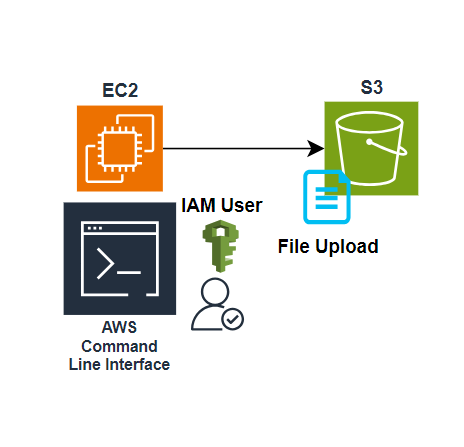
Let us do an exercise with following steps
- Launch an EC2 Instance — We use CLI here
- Create and IAM User — This user has the permissions to access and create S3 resources.
- Configure the AWS CLI — Configure CLI using AWS credentials of the user
- S3 Bucket Connect and Upload — use this CLI to create and S3 Bucket and upload a file.
Step-1 — Create a new instance using the instructions mentioned in the previous Article. Make sure instance is up and running.
Step-2 — Select the EC2 Instance and click on Connect in Actions menu. This will open the Command Line
Step-3 — you will have to Configure your credentials with CLI in order for it to access your account resources.
Step-4 — We have to create IAM User with User Group having Admin access to S3. Go to User Group and search for Permissions and find AmazonS3 Full Access

This gives admin access to the User Group. Now create the IAM User by going to Users > Create New User. Give it a name and go to Next. Select the User Group we just created. Create User.
Step-5 — Open the User after creating it. Go to Access Keys and Create Access Key.
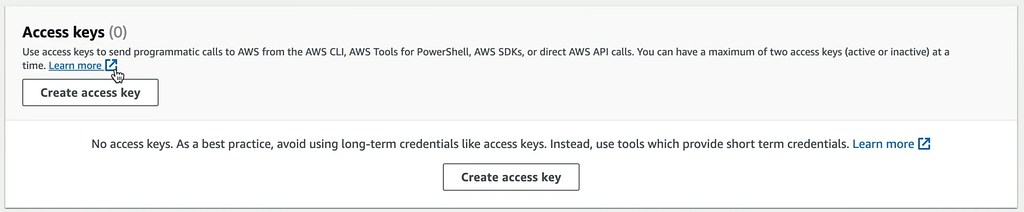
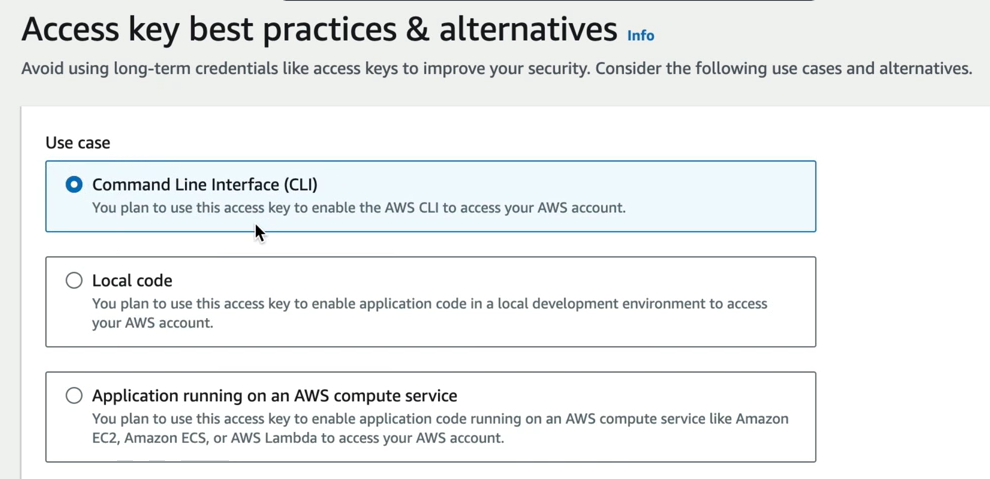
We need access to Command Line. So select it and update the user.
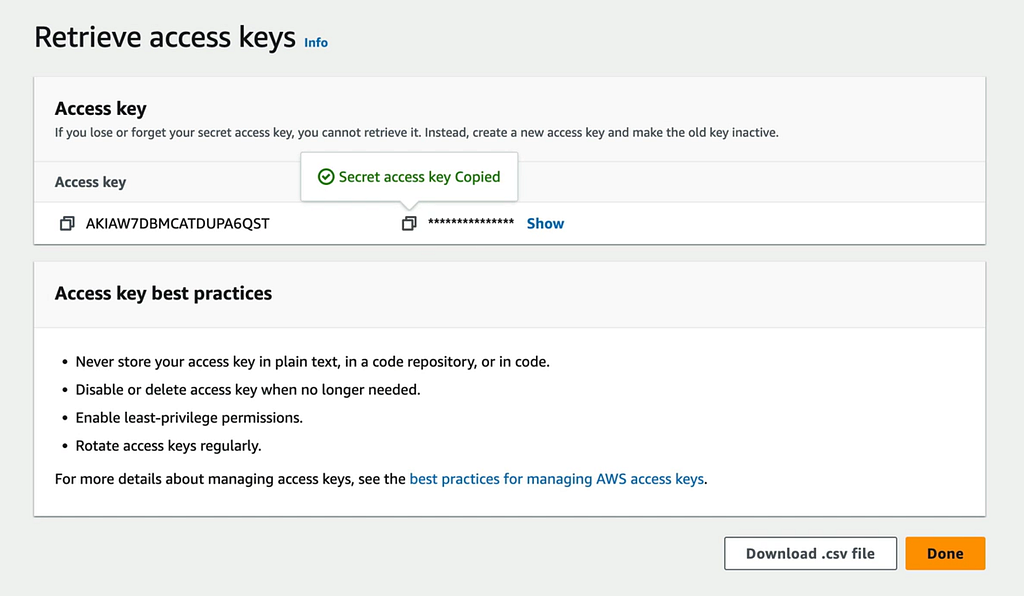
This will create access Key and Secret. Keep it stored as .csv file. The Secret cannot be retrieved once moved from this page.
Step-6 — Go back to CLI and give the command “aws configure” which will ask for Access Key and Secret.

Step-7 — To check the access to s3. Type in the command “aws s3 ls” which should list all the files in s3 bucket.
Step-8 — Now create a new bucket using “aws s3 mb s3://<<name of the bucket>>

This is how we create S3 bucket which can be used now to store the files.
Points to Remember —
- Always remember the principle of Least Privilege — minimum amount of access required to do the job.
- Create IAM Groups and assign permissions to it. Then add the IAM User to the Group.
- Don’t Share the IAM Key pairs
- Store the Secret Access Key safe as it is generated only once.
- We can also install CLI on our local machine and connect to the AWS environment.